

Manage environment variables
Environment variables store credentials, API keys, and configuration values that Promptless uses when interacting with your systems. The most common use case is storing login credentials for Promptless Capture to capture product screenshots.
Add environment variables
Section titled “Add environment variables”-
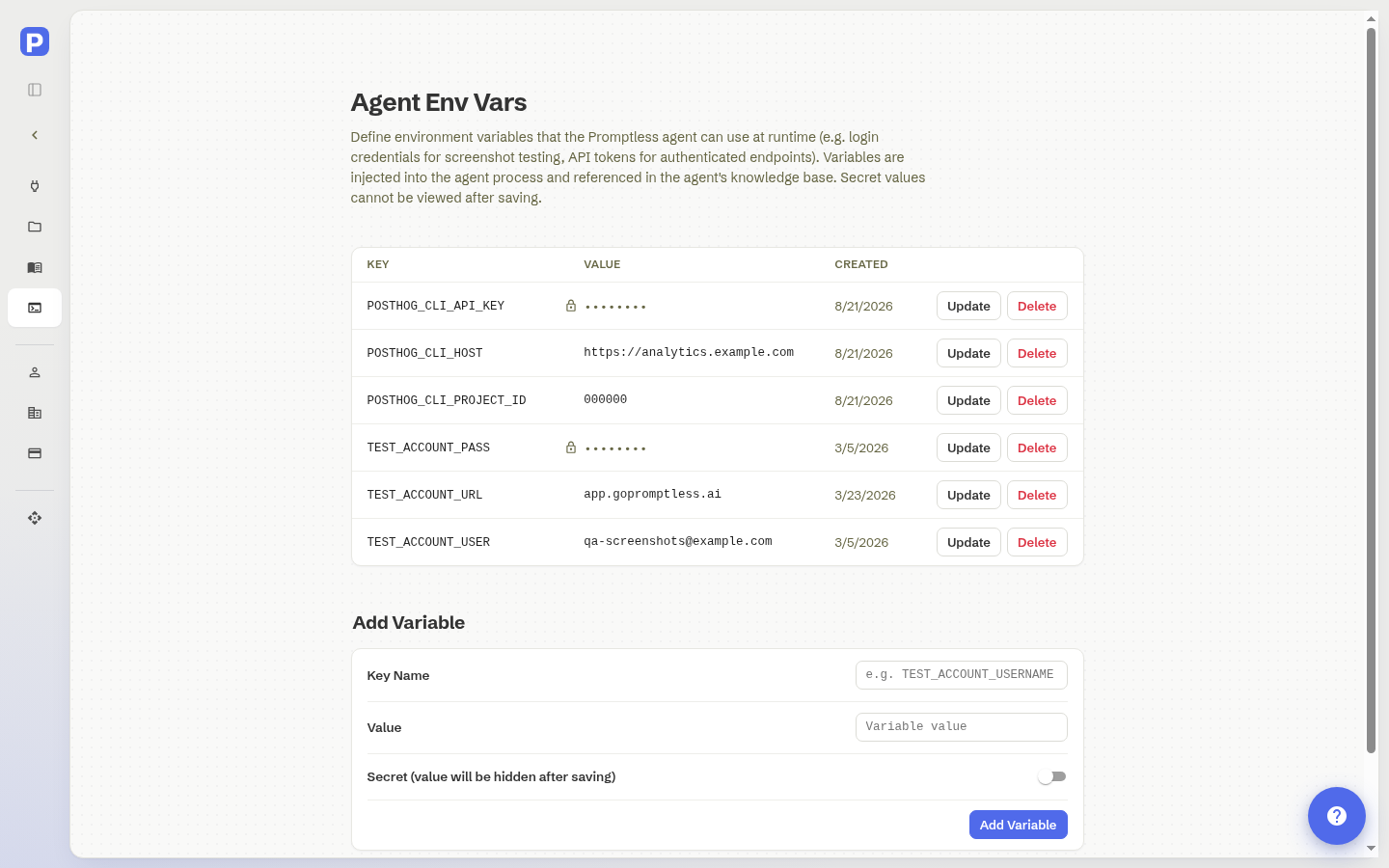
Open Settings. Navigate to the Settings page in your Promptless dashboard and select Agent Env Vars.
-
Enter a key and value. The Add Variable form sits on the page below your existing variables. Type a Key Name and a Value. Use clear, descriptive names that indicate the variable’s purpose.
-
Mark sensitive values as secret. For passwords, API keys, and other sensitive values, turn on the Secret toggle, which masks the Value field as you type.
-
Submit the variable. Click Add Variable. The new variable appears in the variables table above the form.
Keep secrets secure
Section titled “Keep secrets secure”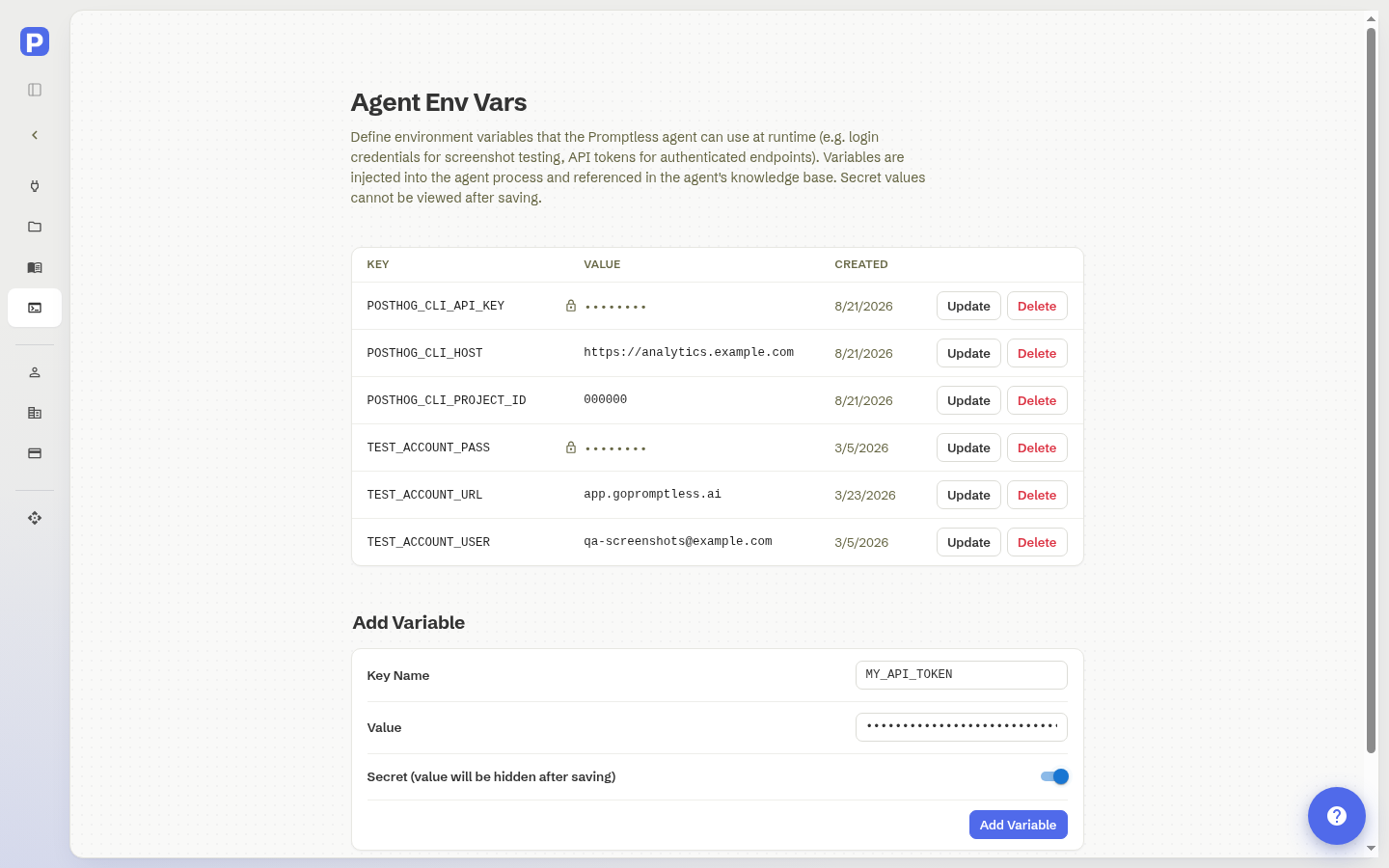
Variables marked as secrets are encrypted and hidden in the dashboard after saving. Use this option for passwords, API keys, and other sensitive values.
Example: Screenshot capture credentials
Section titled “Example: Screenshot capture credentials”For Promptless Capture, add these variables to let Promptless log into your application:
| Variable | Example Value | Secret? |
|---|---|---|
TEST_ACCOUNT_URL | https://app.yourcompany.com/login | No |
TEST_ACCOUNT_USER | qa-screenshots@yourcompany.com | No |
TEST_ACCOUNT_PASS | (your password) | Yes |
Update and delete variables
Section titled “Update and delete variables”To update an existing variable, locate it in the variables table, click the Update button in the Actions column, edit the value, and click Save. For secret variables, re-enter the entire value, because Promptless doesn’t display the original.
To delete a variable, click the Delete button in its row of the Actions column. Deleted variables are immediately removed and are no longer available to the Promptless agent.
Need help? Contact us at help@gopromptless.ai.