
Using the Web Interface
Suggestion overview
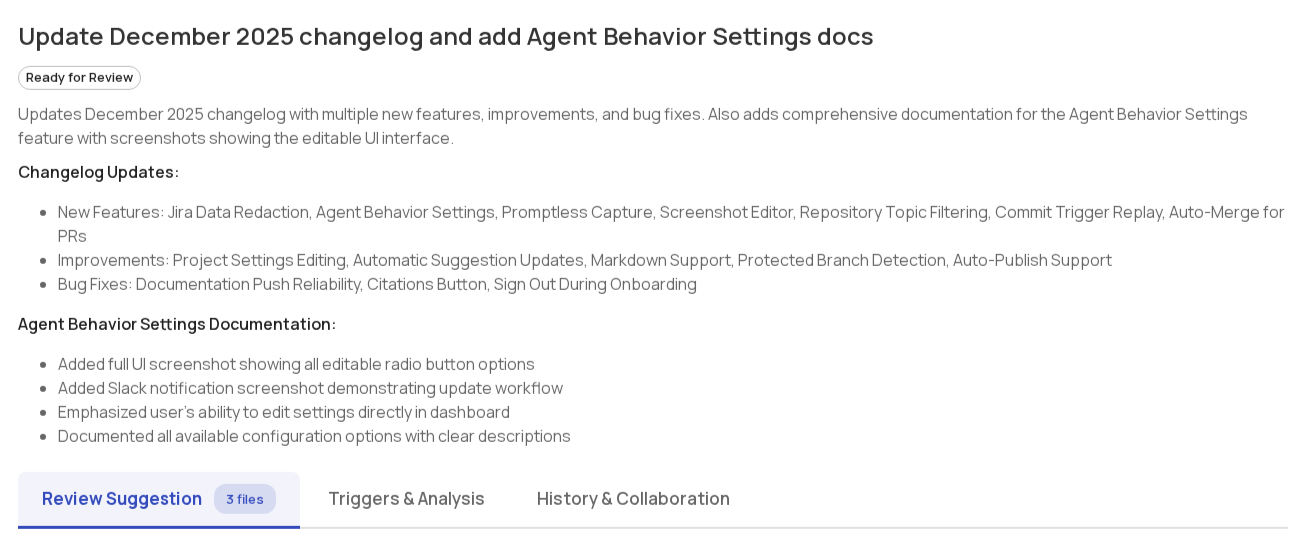
Section titled “Suggestion overview”Each suggestion includes a title and description that explains what changes are being made and why.
Suggestions list
Section titled “Suggestions list”The suggestions list shows all documentation suggestions awaiting your review. Suggestions approaching auto-archive display an orange Archiving soon chip. Hover over the chip for details about the auto-archive behavior. Viewing or editing a suggestion resets the timer.
Suggestions are automatically archived after 30 days by default. Organizations with longer review cycles can request an extended archiving window—contact help@gopromptless.ai to adjust this for your team. If a suggestion does get auto-archived before you can review it, we can also restore it for you.
Providing feedback
Section titled “Providing feedback”Promptless offers several ways to provide feedback on suggestions. Learn about all available feedback methods in the Providing Feedback guide.
Triggers page
Section titled “Triggers page”The Triggers page shows all events that triggered Promptless over the last 30 days. Each entry displays:
- Trigger source: The event that fired (like a GitHub PR or Slack message)
- Status: Processing state (completed, in progress, or error)
- Suggestions created: Whether documentation updates resulted from this trigger
- Timestamp: When the trigger occurred
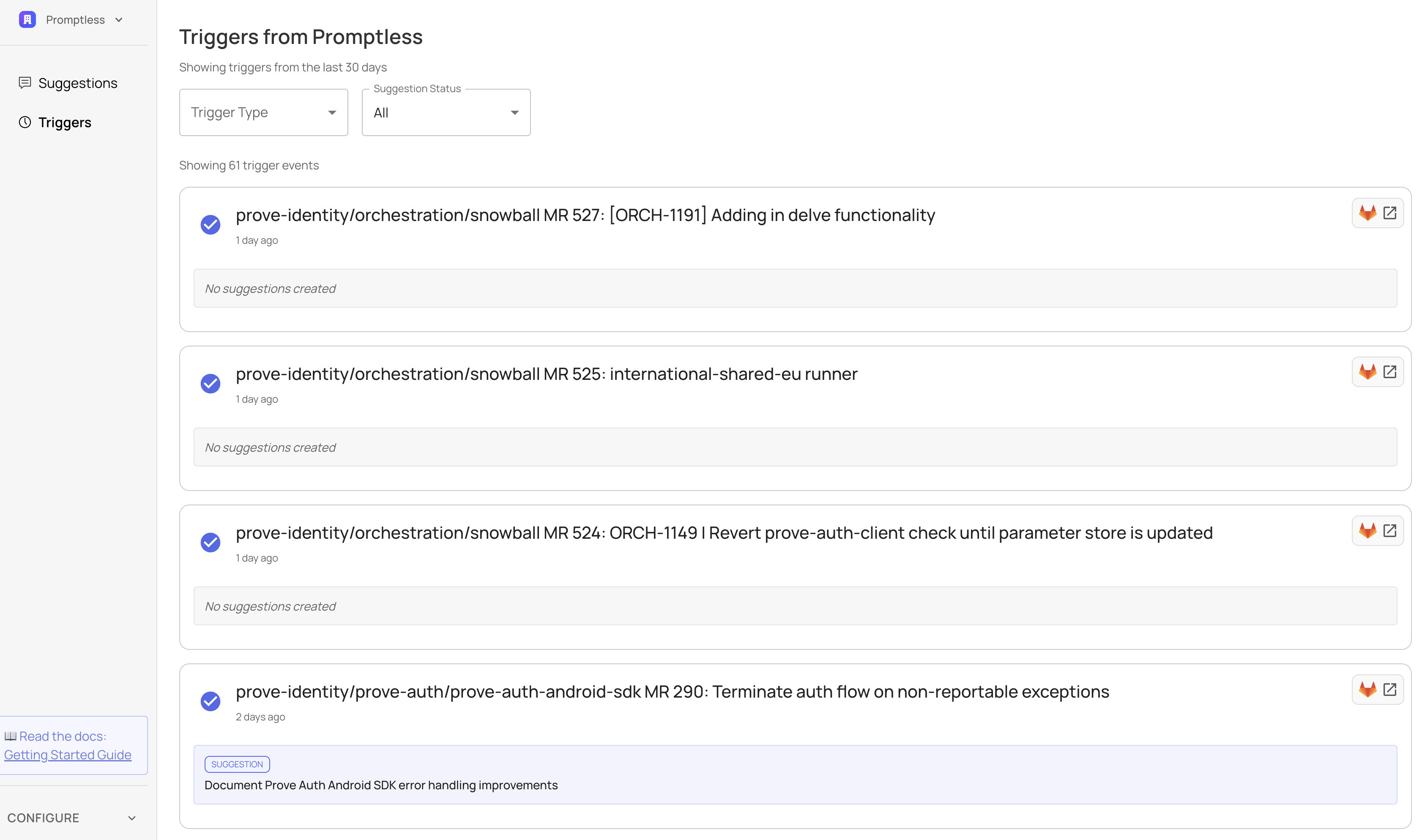
Use the search box to find triggers by PR info, Slack thread topic, task name, or other summary text—including events older than 30 days. Use the filters to narrow down by trigger type or suggestion status. Click any trigger to see full details, including what research Promptless did and why it created (or skipped) documentation updates.
Need help with the web interface? Contact us at help@gopromptless.ai.