
Slack Messages
Slack integration enables documentation updates directly from your team conversations. This is particularly useful for support conversations or internal discussions where questions arise that could be better addressed in your documentation.
Trigger Methods
Section titled “Trigger Methods”Use a Message Action
Section titled “Use a Message Action”Use the Promptless message shortcut on any Slack message to trigger documentation analysis. This method allows you to trigger updates without interrupting the conversation flow.
Mention @Promptless in a Channel
Section titled “Mention @Promptless in a Channel”Tag @Promptless in a channel with specific instructions or questions. Promptless analyzes the full thread context to create relevant documentation updates.
Send a Direct Message
Section titled “Send a Direct Message”Send documentation requests directly to @Promptless in a DM. This is useful for private documentation requests with comprehensive context support.
How It Works
Section titled “How It Works”When triggered in Slack:
- Thread Analysis: Promptless reads the entire thread where it was triggered
- Context Gathering: The system analyzes text, images, and file attachments in the thread
- Documentation Suggestions: Promptless creates suggestions based on the conversation content
- Follow-up Editing: Continue editing suggestions within the same thread using @Promptless mentions
Image and File Processing
Section titled “Image and File Processing”Promptless can process images and file attachments shared in Slack threads when triggered, enhancing documentation with visual elements and additional context when appropriate.
How It Works
Section titled “How It Works”-
When you tag @Promptless or use the “Update docs” message action in a thread containing images or file attachments, Promptless analyzes both the text and attached files in the thread.
-
Promptless evaluates whether the images or file content provide valuable context that should be included in the documentation.
-
If an image or file is deemed relevant, Promptless:
- Uploads the image to a secure S3 bucket
- Extracts and incorporates relevant content from file attachments (including images from PDFs)
- Includes the image in the documentation updates it suggests
- Formats the image appropriately for the documentation platform
-
When reviewing the suggestion in the Promptless app, the added images appear at the bottom of the review interface, allowing you to approve or reject their inclusion.
Thread Reply Auto-Listening
Section titled “Thread Reply Auto-Listening”Promptless automatically monitors threads where it’s participating. When someone replies to a thread where Promptless has posted or been @mentioned, Promptless treats the reply as a follow-on trigger—no additional @mention required.
This means you can:
- Reply to a notification thread with feedback or additional context
- Continue a conversation Promptless started without tagging it again
- Provide images, files, or clarifications that Promptless requested
Opting Out of Individual Messages
Promptless tries to reason about whether each message in a thread is actionable, and not every reply triggers a documentation update. However, if you want to explicitly tell Promptless to ignore a message, start it with aside or /aside:
aside This is an internal discussion point, not for docs.Thread Reply Trigger Mode
Section titled “Thread Reply Trigger Mode”Configure how Promptless handles thread replies in Organization Settings:
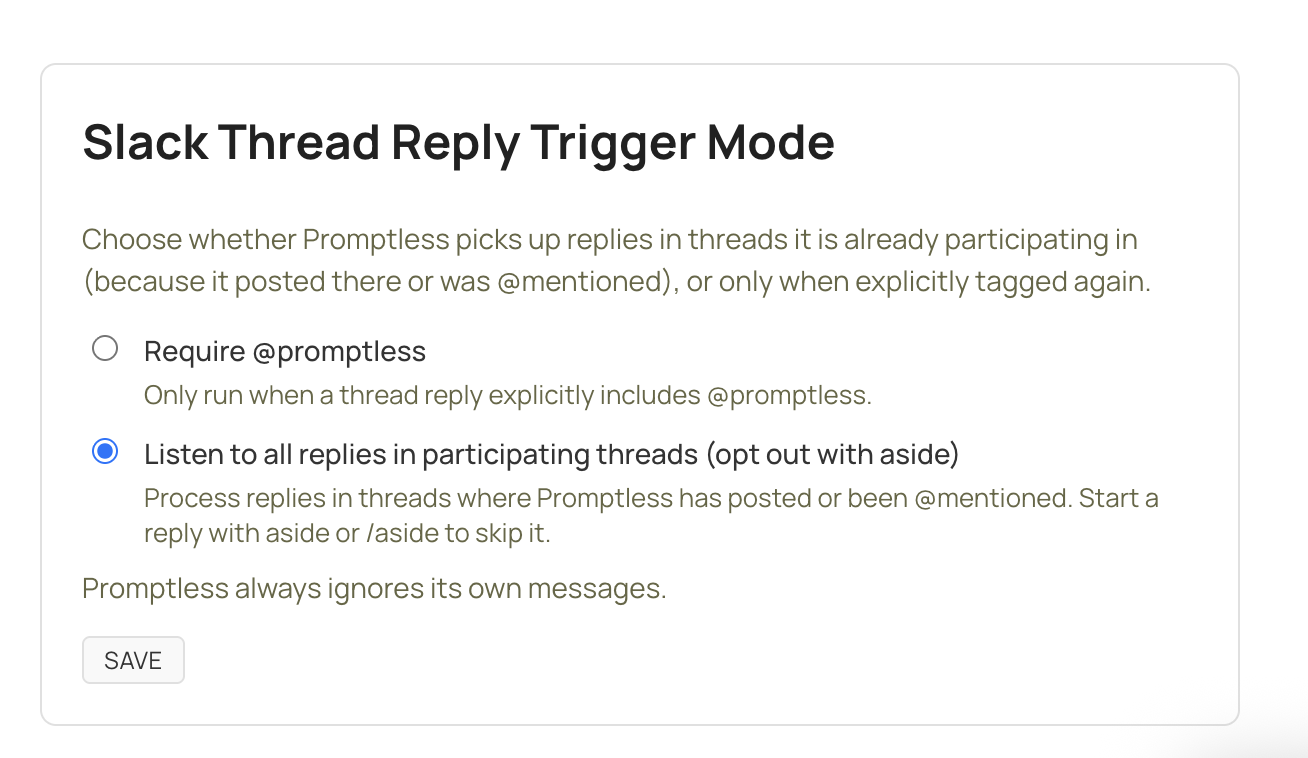
- Listen to all replies (default): Process all replies in threads where Promptless is participating. Use the aside prefix to skip specific messages.
- Require @promptless: Only process replies that explicitly @mention Promptless.
This setting applies organization-wide to all Slack threads.
Passive Channel Listening (Optional)
Section titled “Passive Channel Listening (Optional)”You can optionally enable passive listening for specific channels. When enabled, Promptless automatically monitors conversations in your selected channels and creates documentation suggestions when threads become inactive.
Before You Begin
Make sure the Promptless bot is added to any channel you want to monitor. Promptless cannot view messages in channels where it hasn’t been invited.
To enable passive listening, add a slack_listen trigger to your configuration:
triggers: my-slack-trigger: trigger_type: slack_listen match: - channels: - support - docs-feedbackWarning
Passive listening is completely opt-in and only applies to channels you explicitly select. Promptless cannot access private channels unless it has been specifically invited to those channels.
Customizing Behavior
If you want Promptless to follow specific instructions when processing messages in a monitored channel, add those instructions to your Agent KB in the PROMPTLESS.md file. By default, Promptless uses its best judgment to decide what should be documented, but custom instructions can help tailor the output for your needs.
Configuration
Section titled “Configuration”Configure Slack passive listening in your Configuration page using the triggers section:
triggers: support-channels: trigger_type: slack_listen match: - channels: - customer-support - product-questionsChannel names don’t need the # prefix. When Slack channels are renamed, Promptless automatically updates your configuration.
@Promptless mentions and message actions work automatically when the Slack integration is connected—no configuration required. See the Configuration Reference for details.
Privacy and Channel Access
Section titled “Privacy and Channel Access”By default, Promptless only reads Slack content when you explicitly trigger it by tagging @Promptless or using the “Update Docs” message action. If you enable passive listening, Promptless monitors only the specific channels you select in your project configuration.
Setup Instructions
Section titled “Setup Instructions”To connect Slack to Promptless, see the Slack Integration setup guide.