
Managing Environment Variables
Environment variables store credentials, API keys, and configuration values that Promptless uses when interacting with your systems. The most common use case is storing login credentials for Promptless Capture to capture product screenshots.
Adding Environment Variables
Section titled “Adding Environment Variables”Open Settings
Navigate to the Settings page in your Promptless dashboard.
Find Environment Variables
Select the Environment Variables section to view and manage your variables.
Add a Variable
Click the Add Variable button. Enter a name and value for your variable. Use clear, descriptive names that indicate the variable’s purpose.
Mark Sensitive Values as Secret
For passwords, API keys, and other sensitive values, check the Secret option. Secret values are encrypted and hidden in the dashboard after saving.
Save Changes
Click Save to store your environment variables.
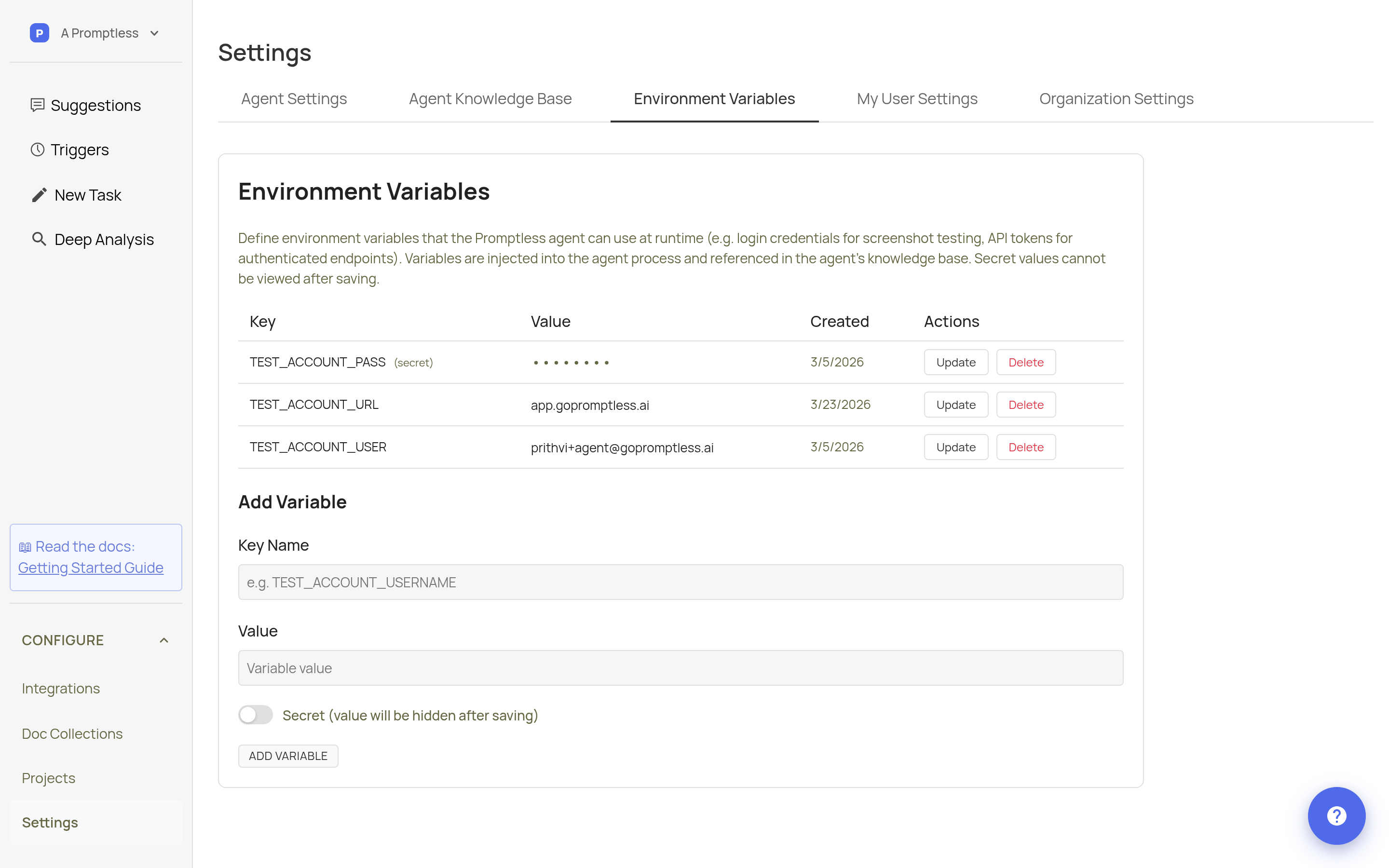
Variable names are flexible. Use whatever naming convention fits your organization—TEST_ACCOUNT_USER, QA_USERNAME, STAGING_LOGIN_EMAIL, or any descriptive name that makes sense to your team.
Keeping Secrets Secure
Section titled “Keeping Secrets Secure”Warning
Use dedicated test or service accounts for credentials rather than personal accounts. This ensures screenshots don’t contain personal data and provides consistent results.
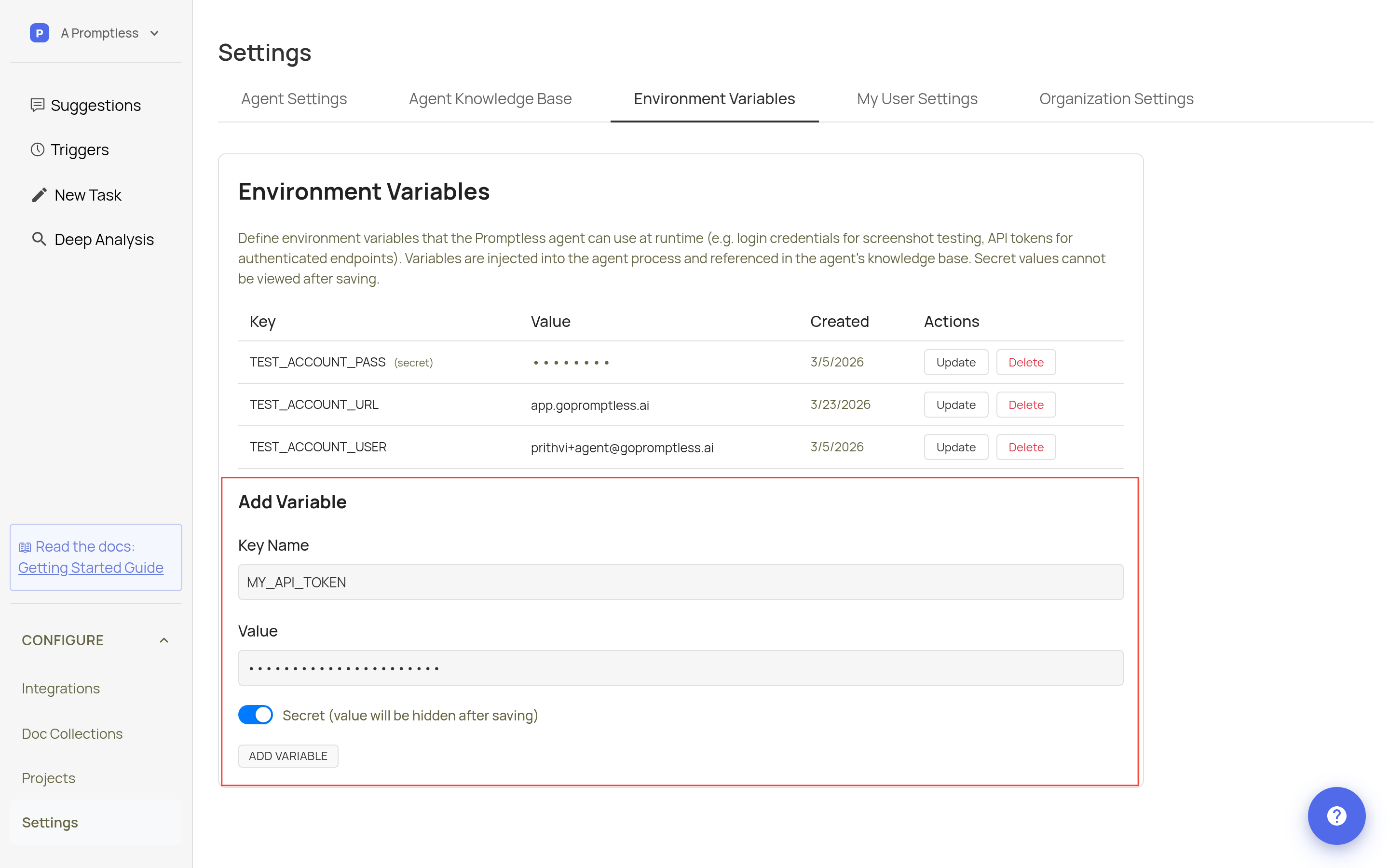
Variables marked as secrets are encrypted and hidden in the dashboard after saving. Use this option for passwords, API keys, and other sensitive values.
Example: Screenshot Capture Credentials
Section titled “Example: Screenshot Capture Credentials”For Promptless Capture, add these variables to let Promptless log into your application:
| Variable | Example Value | Secret? |
|---|---|---|
TEST_ACCOUNT_URL | https://app.yourcompany.com/login | No |
TEST_ACCOUNT_USER | qa-screenshots@yourcompany.com | No |
TEST_ACCOUNT_PASS | (your password) | Yes |
Tip
Create a test account with access to all the features you want documented. If certain features require specific permissions or plan tiers, ensure your test account has the appropriate access level.
Updating and Deleting Variables
Section titled “Updating and Deleting Variables”To update an existing variable, locate it in the Environment Variables section and edit its value. For secret variables, you’ll need to re-enter the entire value since the original is not displayed.
To delete a variable, click the delete icon next to the variable. Deleted variables are immediately removed and will no longer be available to the Promptless agent.
Need help? Contact us at help@gopromptless.ai.