
Slack Integration
Used for: Triggers and Context
Promptless integrates with Slack through our official Slack App, enabling automated documentation updates based on team communication and support conversations.
Promptless does not archive or store your Slack messages.
Disclaimer: Promptless uses LLMs from OpenAI and Anthropic that have the potential to generate inaccurate results.
Installation
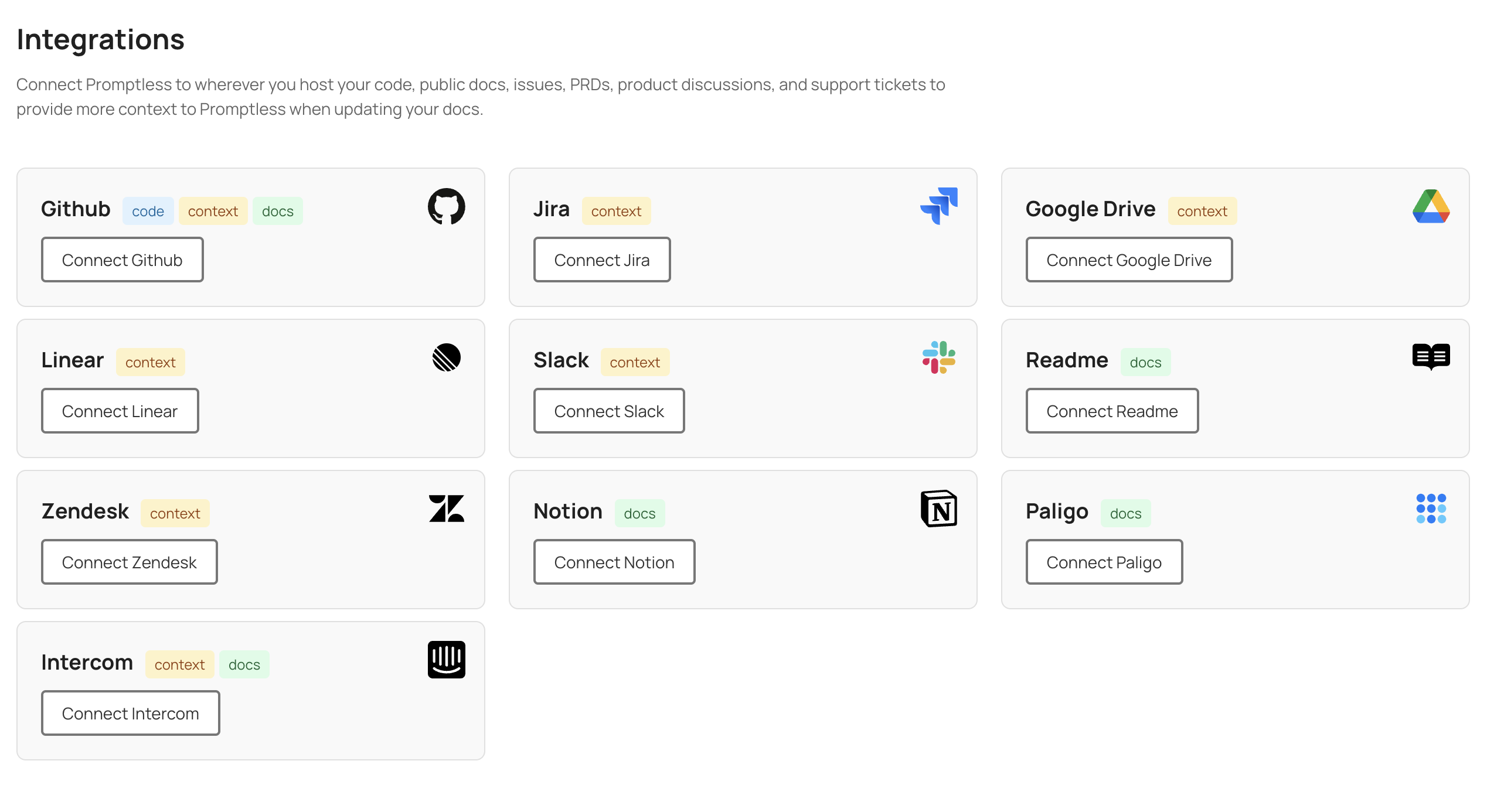
Section titled “Installation”- Click “Connect Slack” from the integrations page.
- You’ll be redirected to Slack to install the Promptless app. Be sure to select the right workspace to install Promptless.
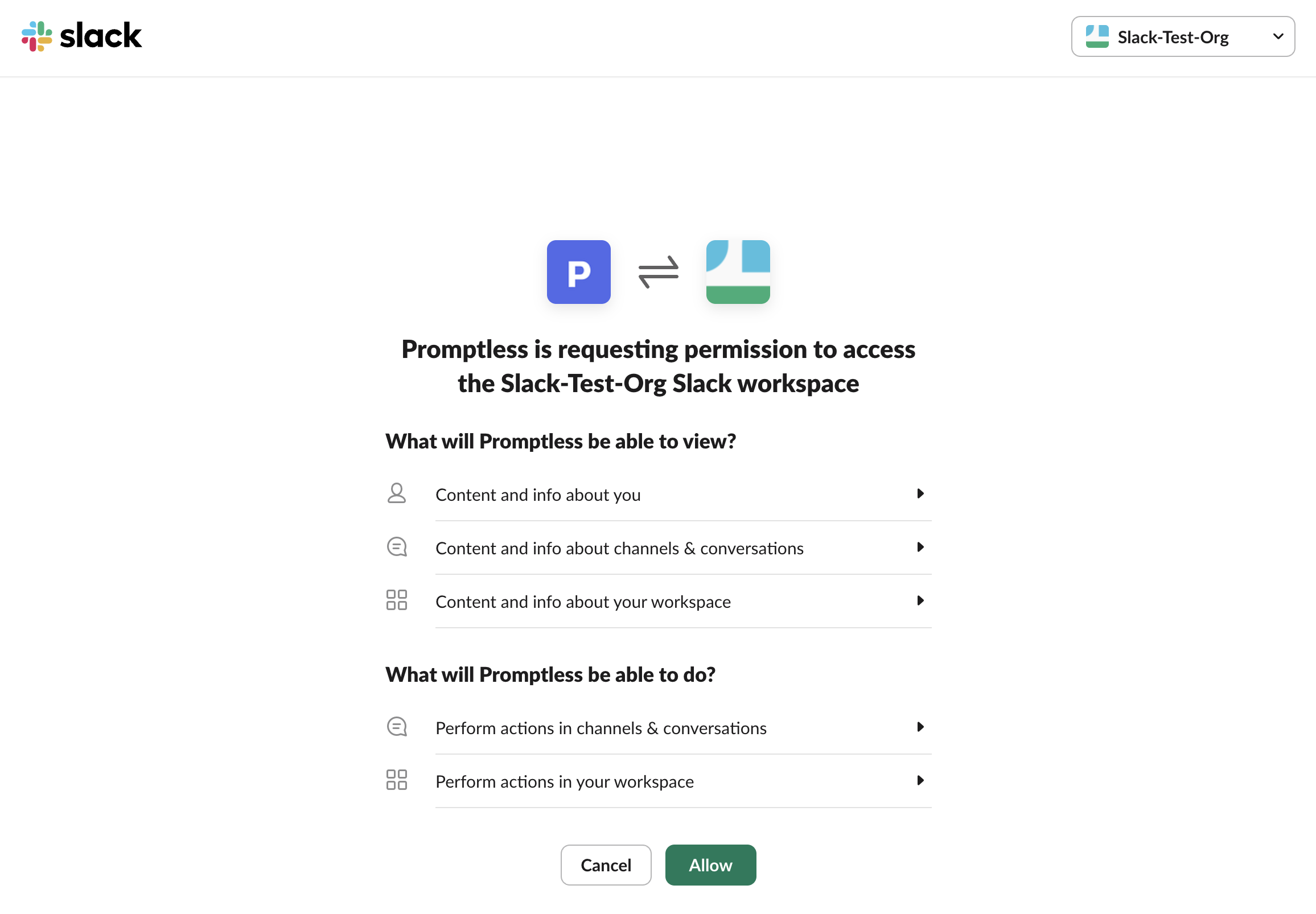
- Review and approve the requested permissions for the Promptless Slack app. Promptless requires these permissions to be able to be triggered from the right events in Slack and to notify your team when updates are available.
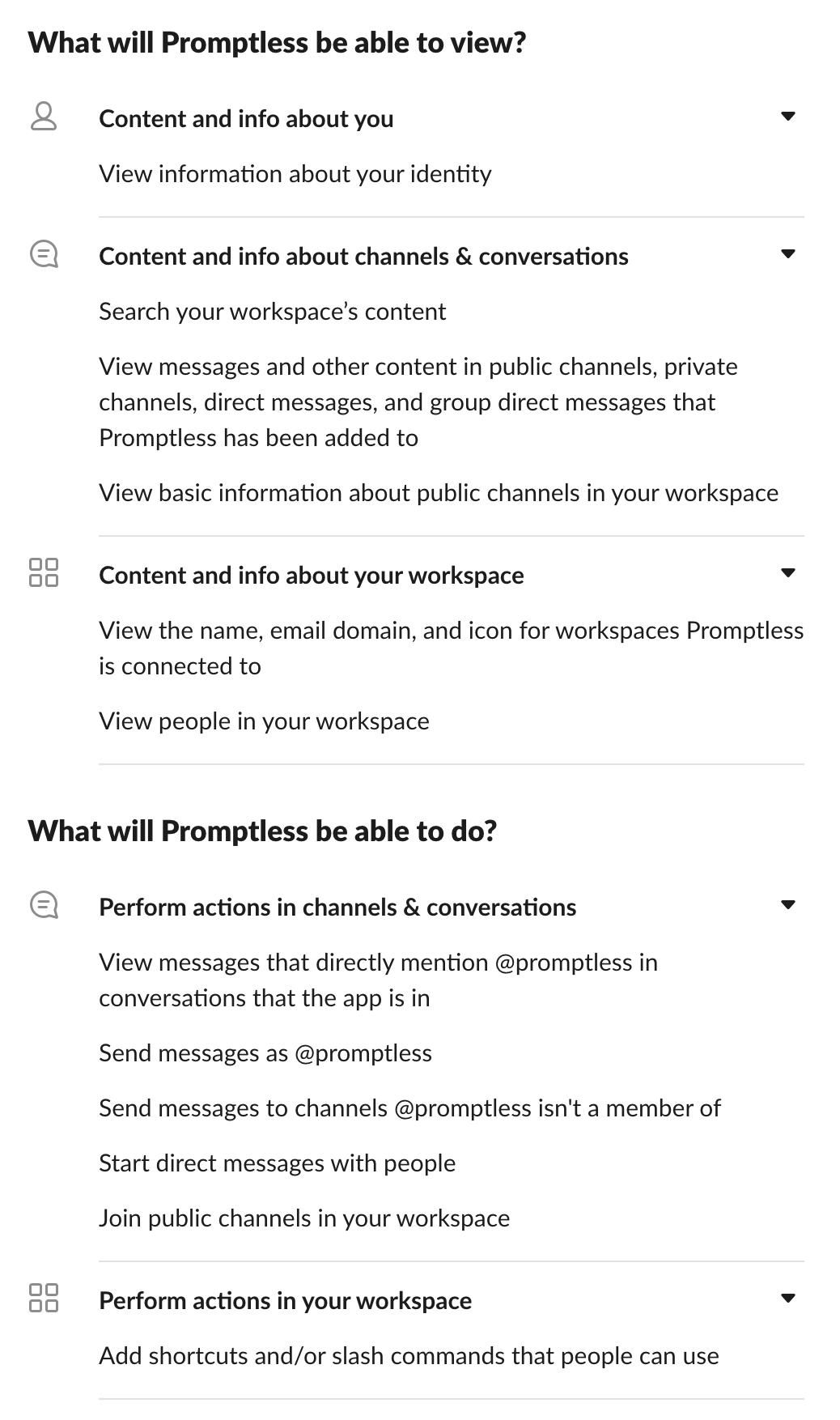
Understanding Slack Permissions
By default, Promptless only accesses Slack content when you explicitly trigger it by tagging @Promptless or using the “Update Docs” message action. If you enable passive listening, Promptless monitors only the specific channels you select.
Key Permissions
Section titled “Key Permissions”Promptless requests these Slack permissions:
- channels:read and groups:read — List available channels and groups
- chat:write — Send messages and notifications to channels where Promptless is invited
- files:write — Attach diff files to Slack threads when notifying about documentation changes
- users:read — Look up user information for mentions and notifications
The files:write permission lets Promptless attach diff files directly in Slack threads, so you can review proposed changes without leaving Slack. If this permission isn’t granted, Promptless links to the dashboard instead.
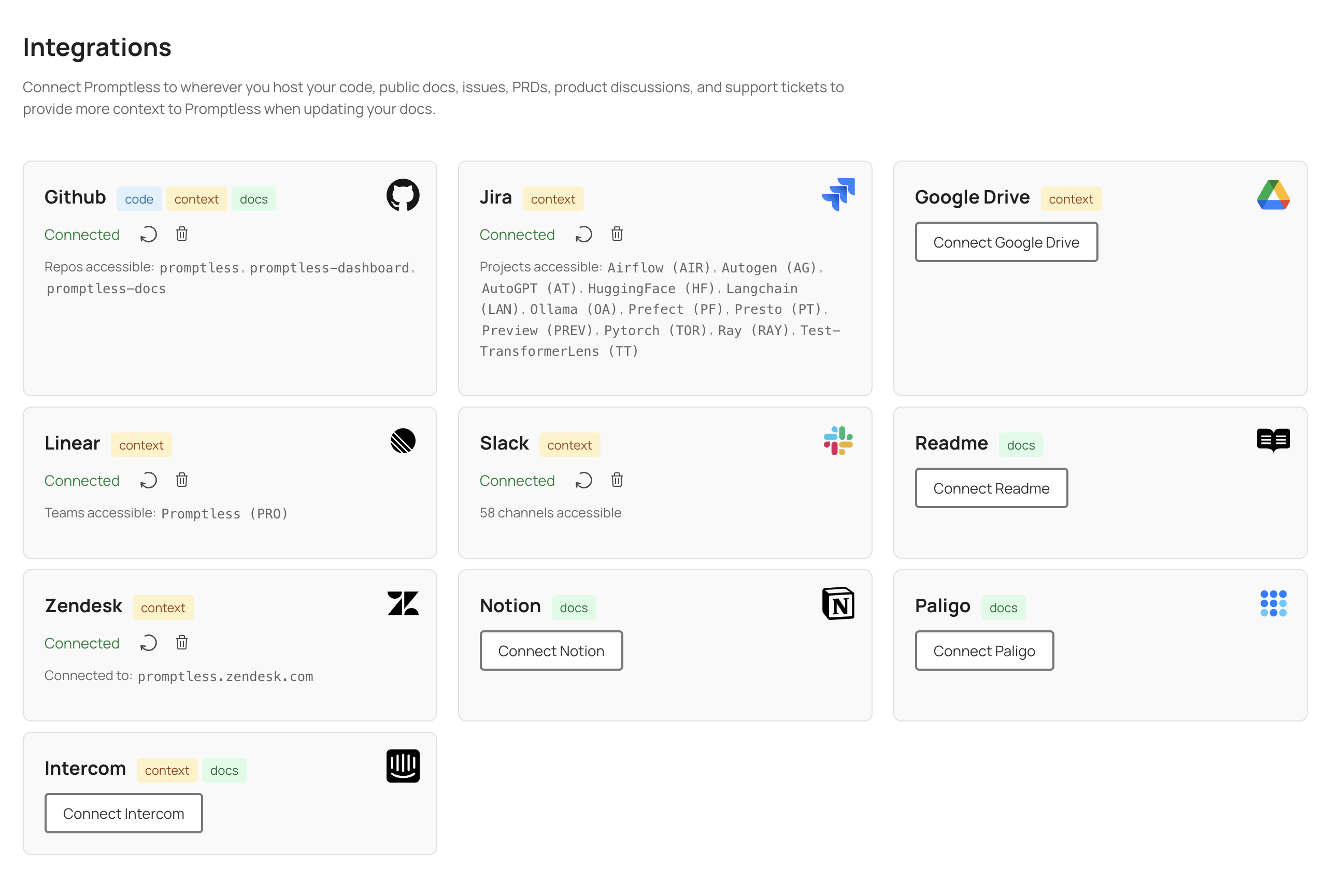
- Verify that Slack is connected in the integrations page.
Support Channel
Section titled “Support Channel”After connecting Slack, you’ll receive a Slack Connect invitation from the Promptless team. Accept it to join a shared support channel where you can ask questions, get help, and share feedback.
What You Can Do with Slack
Section titled “What You Can Do with Slack”Once connected, you can use Slack for:
- Triggers: Tag @Promptless or use message actions to trigger documentation updates
- Context Sources: Search Slack conversations for team discussions and decisions
Privacy and Channel Access
Section titled “Privacy and Channel Access”By default, Promptless only reads Slack content when you explicitly trigger it by tagging @Promptless or using the “Update Docs” message action. If you enable passive listening in your configuration, Promptless monitors only the specific channels you configure.
Adding Promptless to Private Channels
Section titled “Adding Promptless to Private Channels”Promptless cannot access private channels unless it has been specifically invited. To add Promptless to a private channel, tag @Promptless in that channel—Slack prompts you to invite the app.
This is required if you want to:
- Use a private channel as your notification channel for suggestions
- Trigger Promptless from messages in a private channel
- Enable passive listening on a private channel
Troubleshooting
Section titled “Troubleshooting”Diff files not appearing in Slack threads
Section titled “Diff files not appearing in Slack threads”If Promptless notifications appear in Slack but diff files aren’t attached, your Slack integration may be missing the files:write permission. This can happen if you connected Slack before this permission was added to the Promptless app.
To fix this, re-authorize the Slack integration:
- Go to the integrations page.
- Disconnect the Slack integration.
- Reconnect by clicking “Connect Slack” and approving all requested permissions.
After re-authorizing, diff files appear as thread attachments. If issues persist, contact help@gopromptless.ai.
For more details about using Slack with Promptless, see Working with Slack.