

Microsoft Teams integration (beta)
Used for: Triggers
Promptless integrates with Microsoft Teams through our official Teams app, enabling automated documentation updates based on team communication and collaboration within your Teams environment.
Promptless does not archive or store your Teams messages.
Disclaimer: Promptless uses LLMs from OpenAI and Anthropic that have the potential to generate inaccurate results.
Prerequisites
Section titled “Prerequisites”To install Promptless in Microsoft Teams, you’ll need:
- Microsoft Teams admin center access
- Permissions to manage app setup policies in your organization
- Ability to install and configure third-party apps
Installation
Section titled “Installation”Installing Promptless in Teams has two stages. First, install the Promptless app into your Teams tenant (Steps 1–3). Then link that tenant to your Promptless organization (Step 4). The two stages are independent, and you can link before you install. Installing first, as numbered below, is the simplest path.
Step 1: Download Promptless Teams app package
Section titled “Step 1: Download Promptless Teams app package”First, download the Promptless Teams app package from the Promptless integrations page:
Step 2: Upload Promptless Teams app
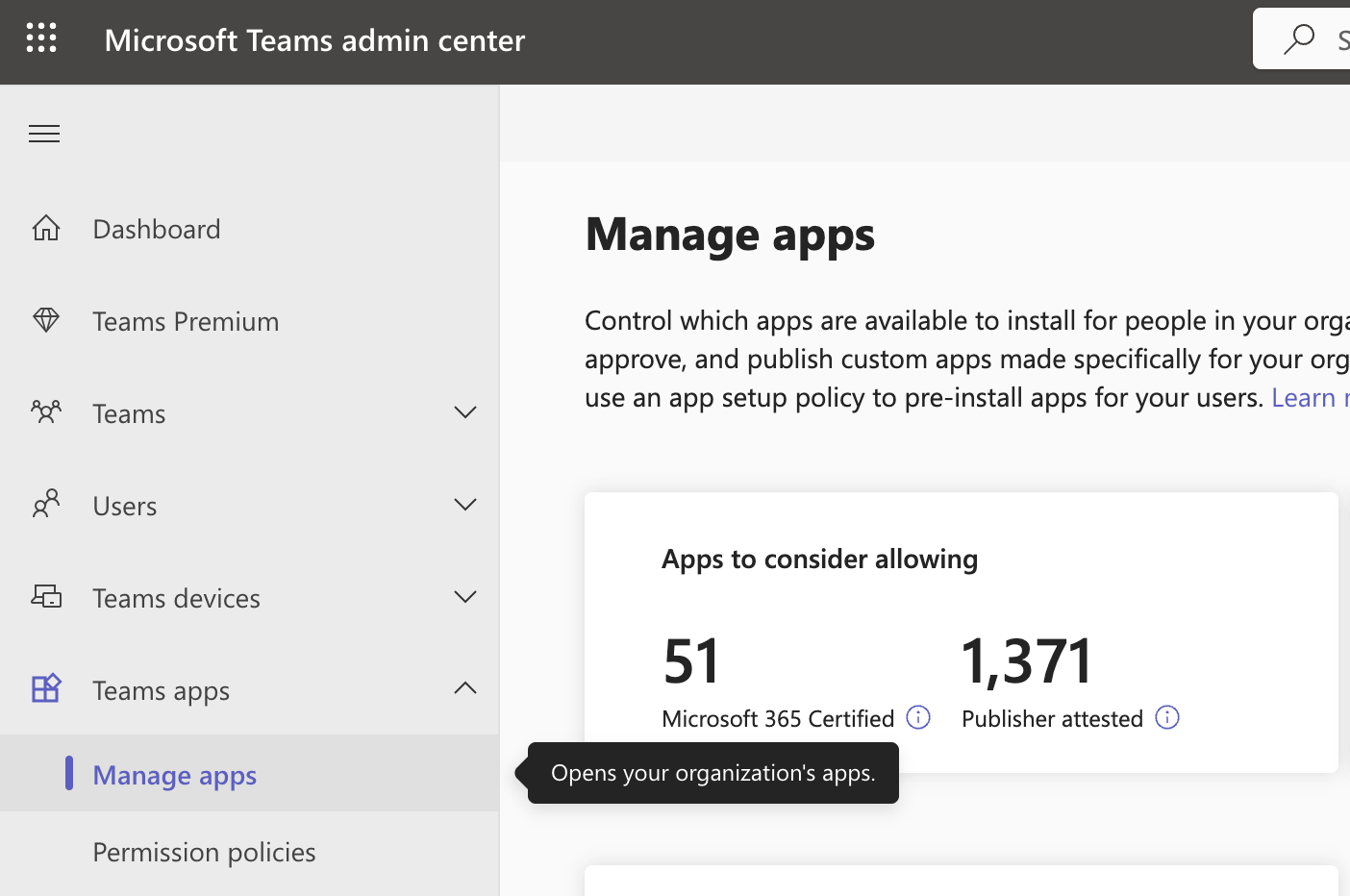
Section titled “Step 2: Upload Promptless Teams app”- Navigate to the Microsoft Teams admin center
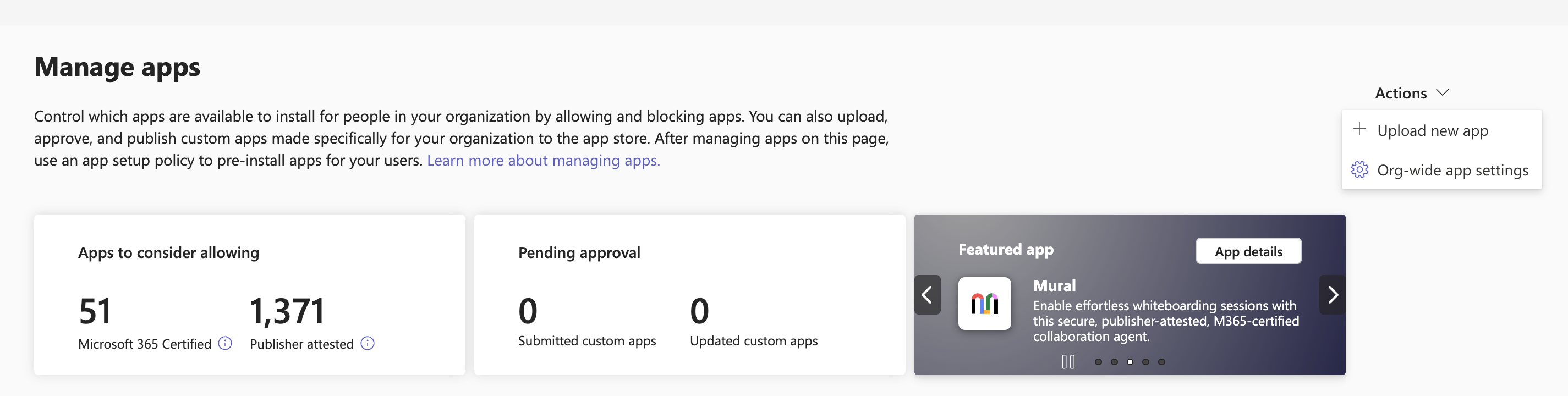
- In the left navigation, under Teams apps, select Manage apps. This section allows you to control which apps are available to install for users in your organization
- Click the Actions > Upload new app button to upload the Promptless Teams app package
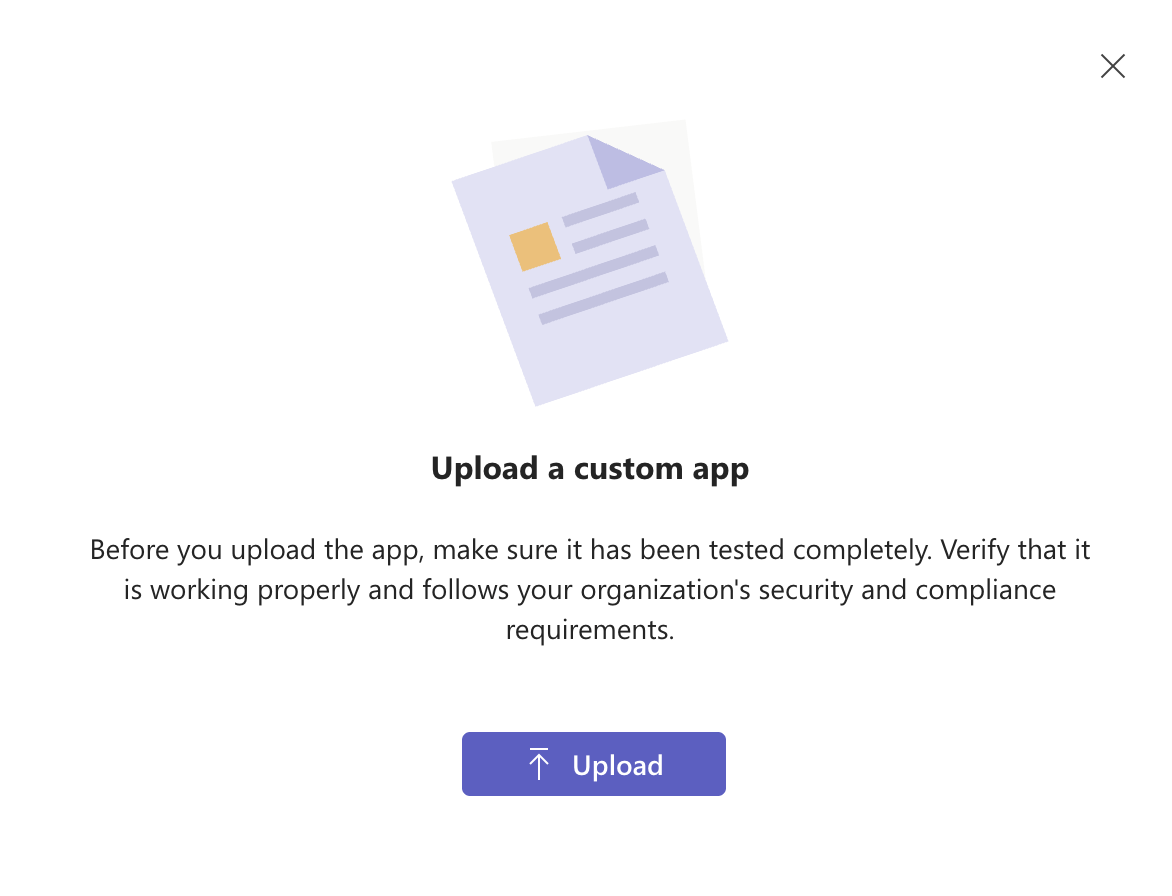
- Click Upload to proceed with the app installation
Step 3: Grant access to users
Section titled “Step 3: Grant access to users”- In the left navigation, select Setup policies
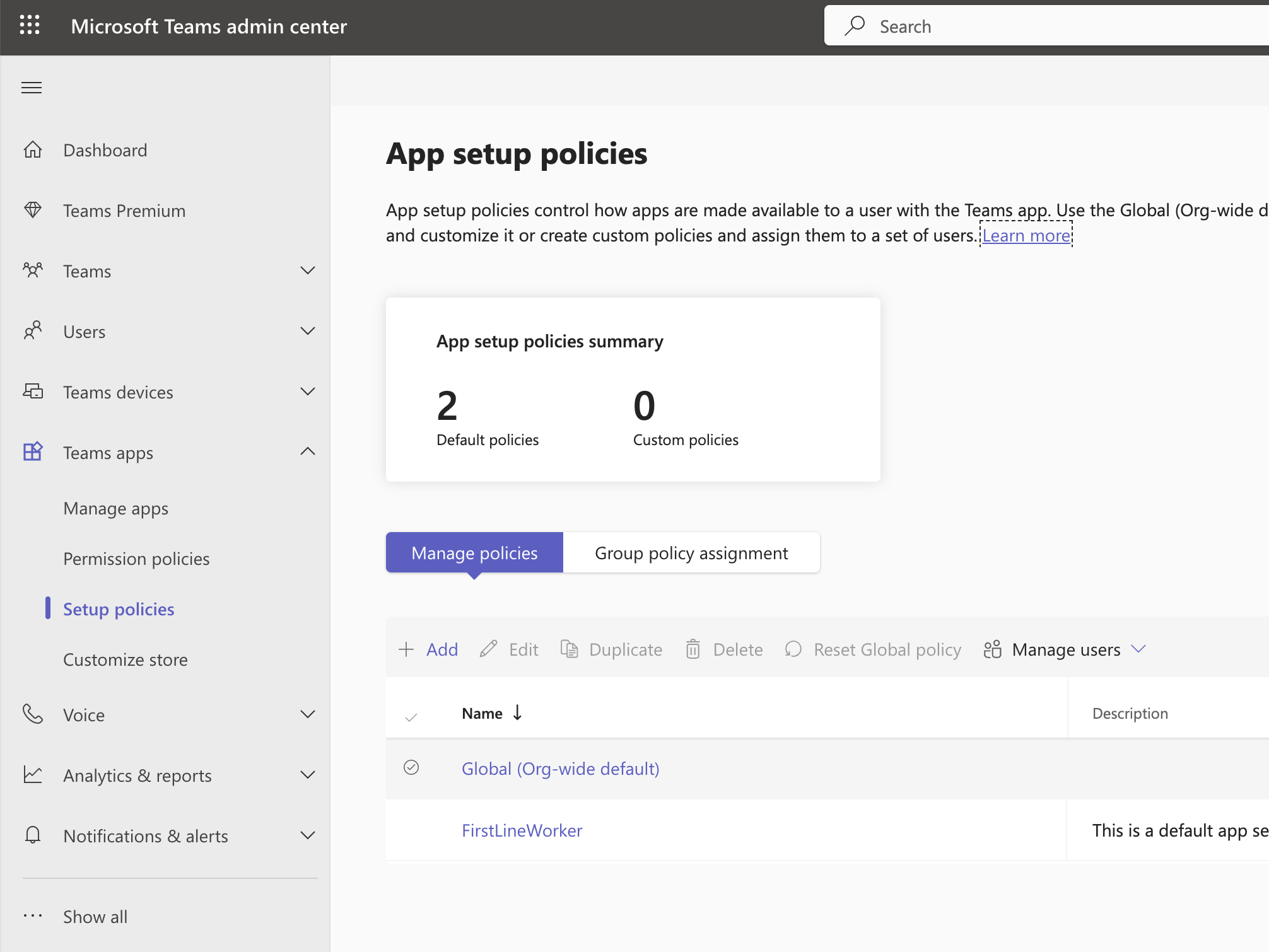
- Select the Global (Org-wide default) policy
- Ensure that Upload custom apps and User pinning are enabled. These settings allow users to install and pin custom apps like Promptless.
- Under Installed apps, click on Add apps
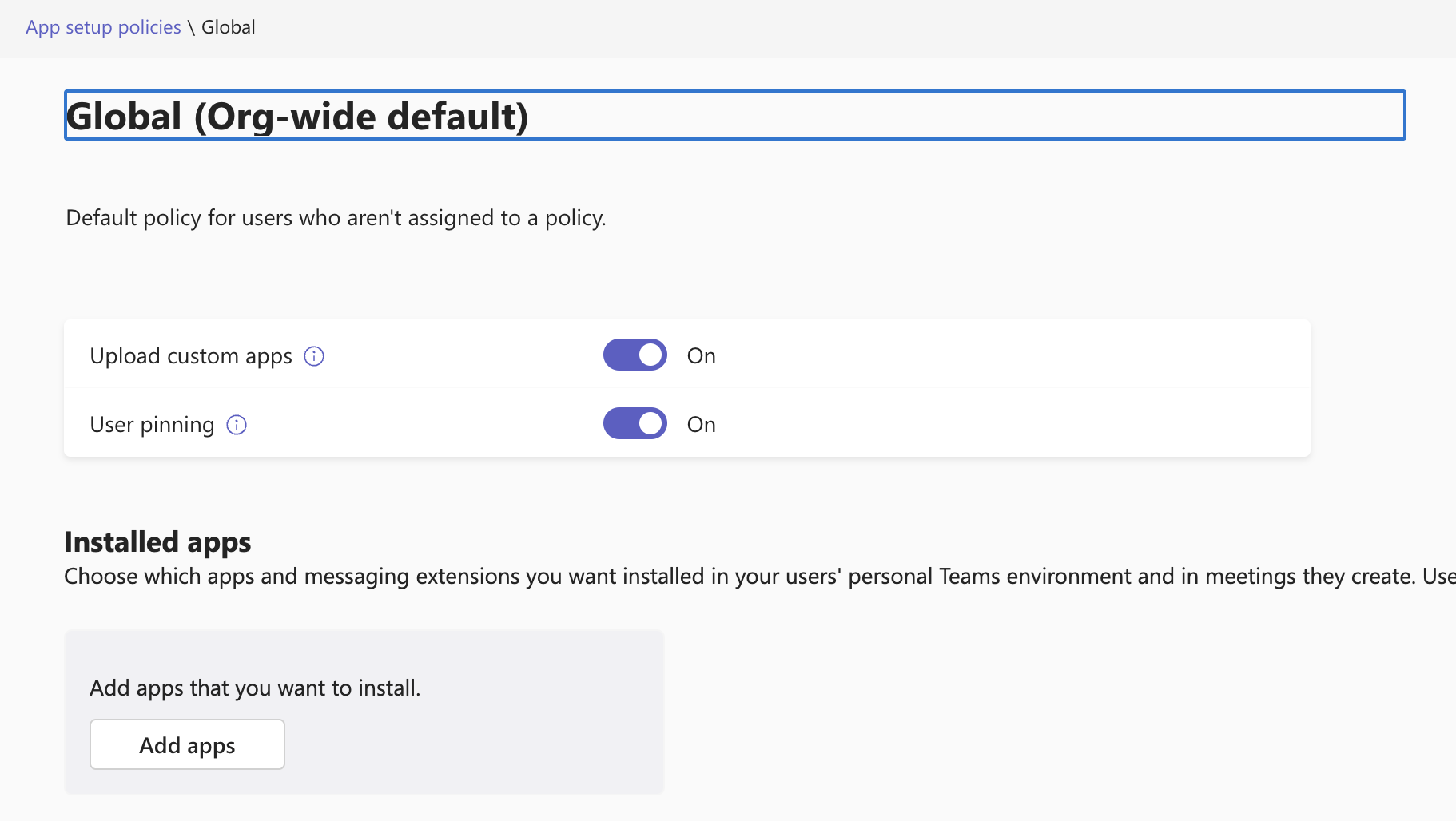
- Search for “Promptless” and add it to the policy
- Click Save to apply the changes
Step 4: Link your Teams tenant to Promptless
Section titled “Step 4: Link your Teams tenant to Promptless”This stage happens back on the Promptless side, not in the Microsoft Teams admin center:
- Go to the Promptless integrations page and find the Microsoft Teams integration.
- Click the Link App & Grant Read Channels button. This starts a Microsoft admin-consent sign-in that only a Microsoft admin can approve. If you’re not an admin, ask your Microsoft admin to complete this step.
- Approve the sign-in. This links your tenant to your Promptless organization.
Until your tenant is linked, the Promptless bot can’t map incoming Teams messages back to your organization. It replies that no workspace is connected.
If the button reads Contact Promptless instead of Link App & Grant Read Channels, OAuth isn’t configured for your organization yet. Email help@gopromptless.ai to finish connecting.
First-time experience
Section titled “First-time experience”When you install Promptless personally (adding it to your 1:1 chat), you’ll receive a welcome message that covers:
- Asking your admin to connect your docs workspace to your Microsoft tenant
- Mentioning
@Promptlessin channels, threads, and group chats - Using the Update docs with Promptless message action
If you use Promptless before your organization’s workspace is connected, Promptless will direct you to the integrations settings. There, an admin can complete the connection.
Reading files you share
Section titled “Reading files you share”When you message @Promptless in a personal (1:1) chat, Promptless reads the files and images you attach. It uses them as context for the documentation it drafts, just as it does in Slack. It also reads inline images you paste into a message, in personal chats and in channels.
Promptless reads files attached in Teams channels too, but only from the SharePoint sites a Microsoft tenant administrator has granted it access to. After an admin approves the Teams connection, they choose which SharePoint sites Promptless may read from on the Promptless integrations page. Promptless reads channel files only from those granted sites; a file that lives on any other site is surfaced as unavailable rather than read. If your organization connected Teams before this, an admin needs to reconnect and pick sites before channel files become available. Promptless does not read anything you attach in a group chat, including inline images.
What you can do with Microsoft Teams
Section titled “What you can do with Microsoft Teams”Once connected, you can use Microsoft Teams for:
- Triggers: Tag @Promptless in channels or DMs, use message actions, or enable passive listening to trigger documentation updates
- Configuration: Ask Promptless to update your triggers, doc collections, and other configuration directly
To set up passive listening, see Passive channel listening.
Key permissions
Section titled “Key permissions”Promptless requests permissions through Teams Resource-Specific Consent (RSC):
- ChannelMessage.Read.Group: Receive channel messages for passive listening in teams where the app is installed
- Standard bot permissions: Send messages and notifications, read user information for mentions
Privacy and channel access
Section titled “Privacy and channel access”By default, Promptless only accesses Teams content when you explicitly trigger it by @mentioning @Promptless or using a message action. If you enable passive listening, Promptless monitors only the specific channels you select.
Adding Promptless to channels
Section titled “Adding Promptless to channels”Promptless receives messages only from channels within teams where the app is installed. To monitor a specific channel, ensure:
- The Promptless Teams app is installed in the team containing that channel
- The channel is added to your passive listening configuration (if using passive listening)