

Use the web interface
Suggestions list
Section titled “Suggestions list”The suggestions list is your review queue. Each suggestion takes one row, so you can scan a large backlog and pick what to review first. Select a row to expand its details in place. Select its title to open the full suggestion.
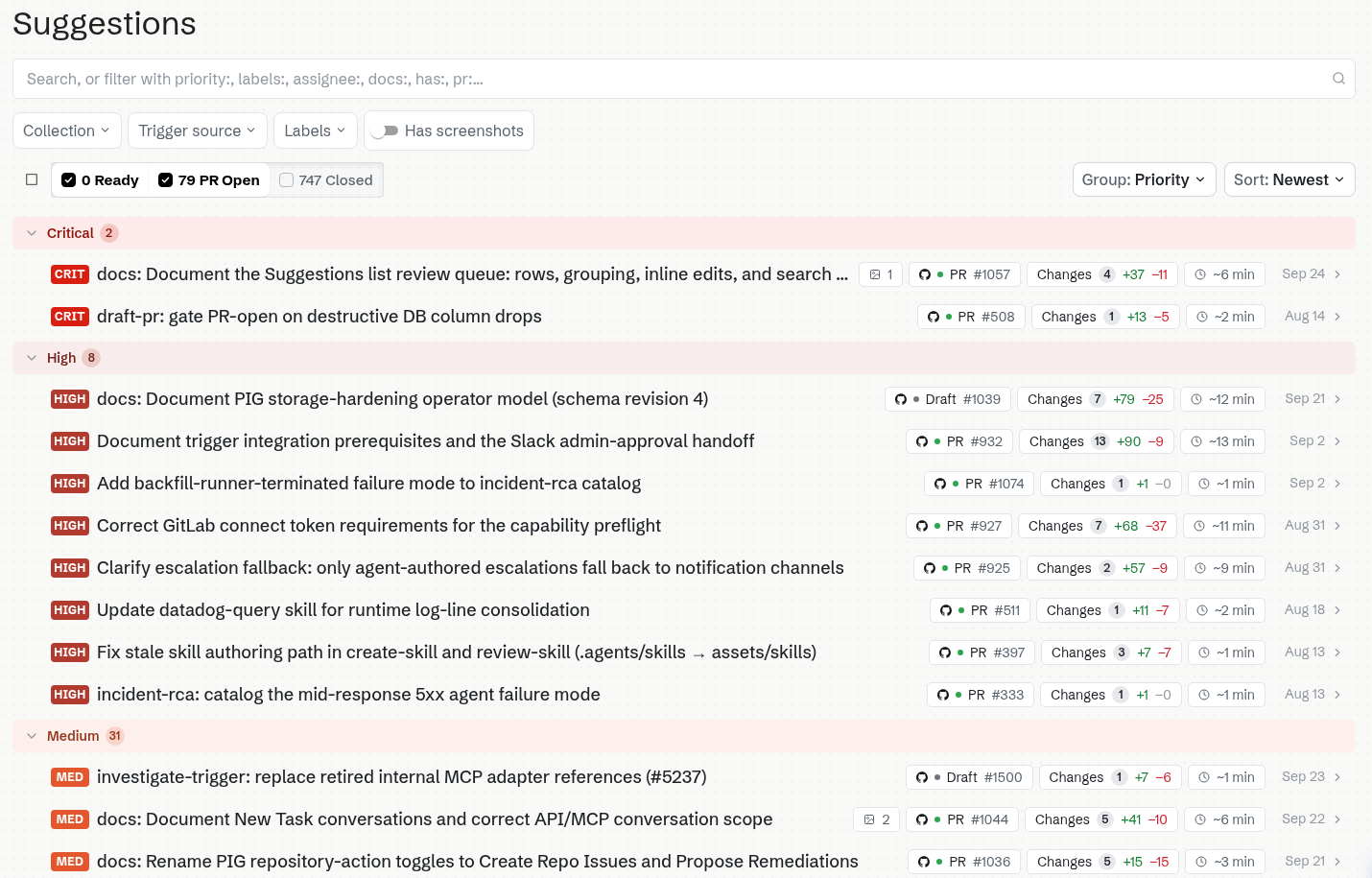
Each row shows:
- Priority: A badge with the suggestion’s priority level,
CRIT,HIGH,MED, orLOW. Select the badge to filter the list to that level, and select it again to clear the filter. - Screenshots: The number of screenshots the suggestion changes.
- Docs PR: The status of the suggestion’s documentation PR or MR, when one exists. Select the chip to open it. A Closed chip marks a suggestion that was closed without a PR.
- Changes and review time: The size of the change and Promptless’s estimate of how long it takes to review.
- Archiving countdown: A chip such as “Archiving in 3 days” on suggestions nearing auto-archive. Hover over it for details.
By default, suggestions are automatically archived after 30 days of inactivity. Viewing or editing a suggestion resets the timer, so anything you’re actively reviewing stays in the queue. If your team wants a different window, or wants to keep suggestions open indefinitely, an admin can change or disable archiving per doc collection. Use the archiving policy to do this. See the Configuration reference for the enabled and stale_after_days fields. If a suggestion is auto-archived before you can review it, we can restore it for you.
Review a suggestion from the list
Section titled “Review a suggestion from the list”To expand a row, select anywhere on it except its title. From the keyboard, focus the chevron at the end of the row and press Enter. The expanded row shows the description and the files the suggestion changes. Next to them, a Details column lists when the suggestion was created and updated, plus its Assignees, Priority, and Labels.
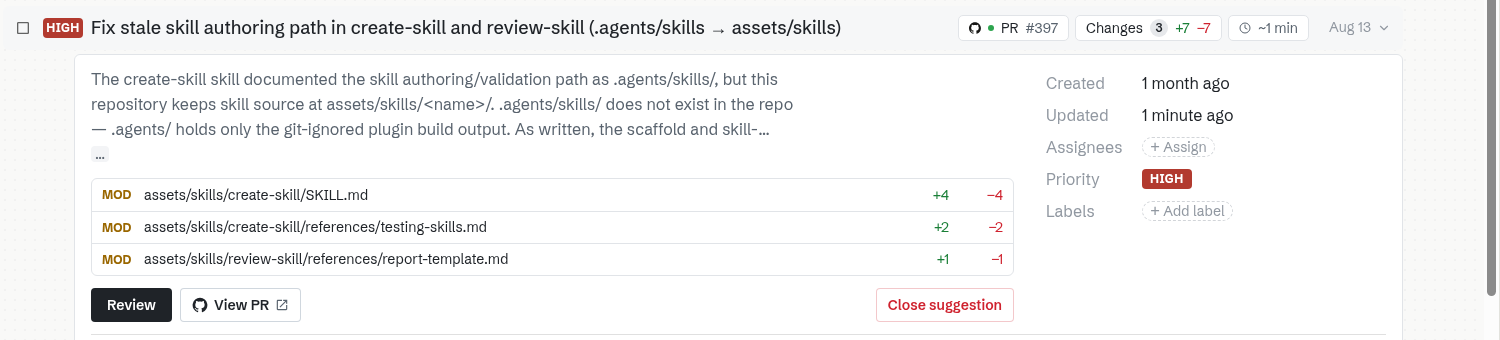
Edit assignees, priority, and labels right in the Details column. Each edit saves as soon as you make it. If a save fails, the row returns to its previous value and a notification offers Retry. Setting Priority to No priority clears the level.
From the expanded row, select Review to open the full suggestion, View PR to open its documentation PR, or Close suggestion to close it.
Group and sort
Section titled “Group and sort”Use Group to organize the list by Priority (the default), Doc collection, or Created date, or select None for a flat list. Select a group’s chevron to collapse it. Use Sort to order rows by priority, created date, updated date, review time, or change size, in either direction. Grouping and sorting change only the order of the list, never which suggestions it shows. Both are saved in the page URL, so a copied link opens the same view.
Filter and search
Section titled “Filter and search”The Ready, PR Open, and Closed tabs filter the list by status. Below the search field, the Collection, Trigger source, and Labels menus and the Has screenshots switch narrow it further. Each menu option shows how many suggestions it matches.
The search field takes free text and filter qualifiers such as priority:high, assignee:unassigned, labels:, docs:, has:screenshots, pr:#, and source-pr:#. As you type, the field completes qualifiers from your organization’s own labels, assignees, collections, and trigger sources. Each applied qualifier appears as a pill in the search field. To remove a pill, select its × button, or press Backspace when the field is empty. Filters you pick from the menus appear as pills too.
To find a suggestion by pull request or merge request number, enter one of these:
pr:123matches the suggestion whose docs PR is #123.source-pr:123matches suggestions triggered by source PR or MR #123.#123matches either.
Suggestion detail tabs
Section titled “Suggestion detail tabs”Opening a suggestion from the list shows its detail view, organized into three tabs.
- Review Suggestion (opens by default): shows the suggested file changes. Edit the suggestion, publish it (open a PR or MR), request changes, or close it.
- Triggers & Analysis: shows the trigger events that produced the suggestion and the research Promptless did before drafting it, described in Research breakdown.
- History & Collaboration: shows assignees, labels, the change timeline, and overall comments.
Suggestion overview
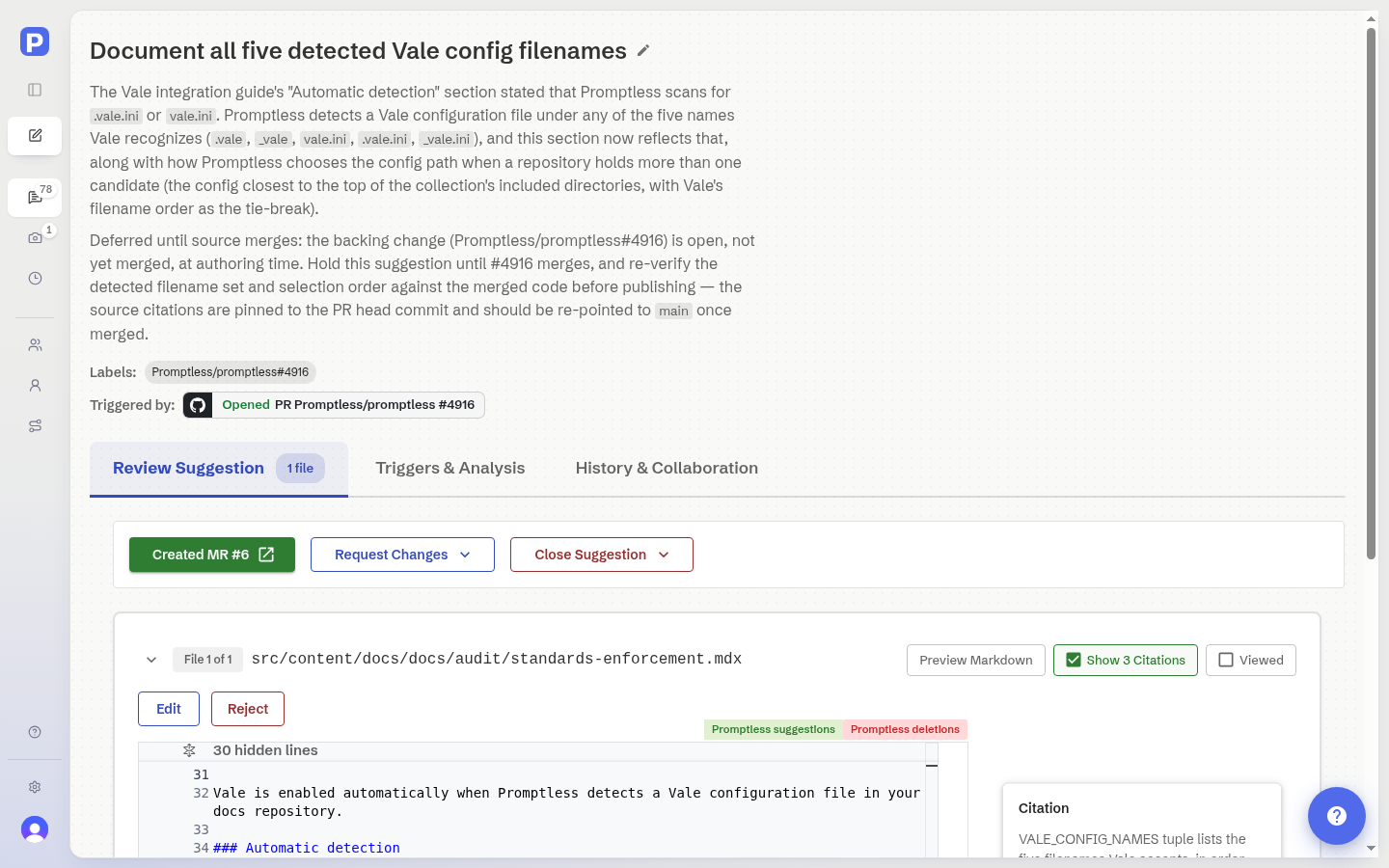
Section titled “Suggestion overview”Each suggestion includes a title and description that explains what changes are being made and why.
Edit the title
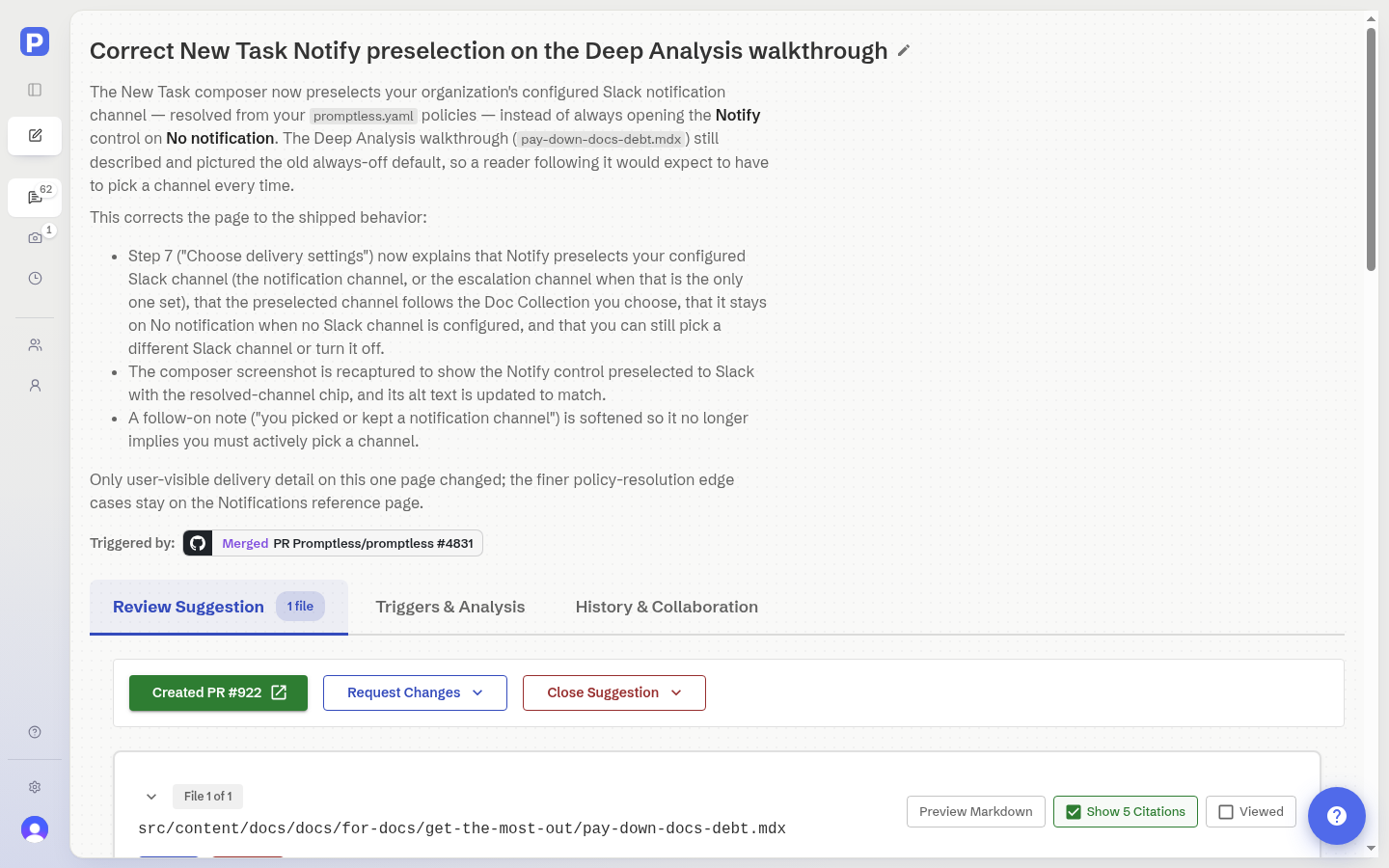
Section titled “Edit the title”You can rename a suggestion from its detail page. Click the pencil next to the title, type a new name, and press Enter or click the checkmark to save. Press Escape or click the X to cancel. Titles can’t be empty.
When a suggestion already has an open or draft documentation PR, GitHub is the source of truth for the title. Saving pushes the rename to the GitHub PR title first. Promptless keeps the new title only once GitHub accepts it, so your dashboard and the PR stay in sync. Only the PR title changes. Your branch and commits are untouched. If the GitHub update fails, Promptless leaves the title unchanged and shows a retryable error. If you rename the PR on GitHub instead, opening the suggestion in the dashboard pulls the current PR title back in.
For a suggestion with no open PR, Promptless saves the edit locally.
Markdown preview
Section titled “Markdown preview”Preview how Markdown and MDX files will render before publishing. Click Preview Markdown on any .md, .mdx, or .markdown file to open a preview modal with diff highlighting. Added content appears with a green background and left rail, and removed content shows red. This helps you review formatting, headings, lists, tables, and code blocks in context without switching between raw diff and published views.
Image preview
Section titled “Image preview”When a suggestion changes an image, screenshot, or diagram, the suggestion viewer shows the old and new versions side by side. Compare them visually in the Before and After panes.
- An added image shows “No previous version” in the Before pane. A deleted image keeps its previous version next to an “Image removed” placeholder.
- Click an image to open it full size.
- Previews render for PNG, JPEG, GIF, BMP, WebP, AVIF, and SVG files. Unsupported file types and very large files show a message in place of an inline preview.
- Image-only suggestions get the same status as any other suggestion, so you can apply and publish them the same way.
- Rejecting an individual image restores the previous version rather than deleting the file.
SVG files open rendered, so you can review how a diagram changed without reading its markup. To see the markup diff, select View source in the file header. Select View image to return to the rendering.
- Selecting Edit always opens the source editor. After you select Save, the file returns to the view you were in before editing, and the After pane renders your changes.
- An SVG the browser can’t parse shows a broken image in its pane. Select View source to inspect its markup.
- The viewer renders each SVG as a static image, so scripts inside it don’t run and it doesn’t load external resources.
The commit timeline
Section titled “The commit timeline”The commit timeline lists the commits on a suggestion’s branch, so you can see the work behind it. It also includes the automatic sync/merge commits Promptless creates when it merges the base branch into the suggestion branch. A sync/merge row can report a large file count. It reflects content pulled in from the base branch, not changes the suggestion itself proposes.
When there’s nothing to review
Section titled “When there’s nothing to review”When a suggestion’s branch matches its base branch, the viewer shows an explanatory panel that reads “No changes against” plus the base branch name.
This normally means the changes already landed on the base branch, or a sync merge replaced them. If the branch has no commits at all, the panel instead says the branch has no content that differs from the base.
From here you can select Request Changes to ask Promptless for a different approach, or Close Suggestion to end the suggestion with feedback. If you think the empty result is an error, contact support. The panel also shows the branch name with a View branch link to the branch on GitHub or GitLab when available. It renders the commit timeline inline below it.
Provide feedback
Section titled “Provide feedback”Promptless offers several ways to provide feedback on suggestions. Start with Giving feedback to Promptless to choose a method for your situation. For the step-by-step details of each, see the Teach conventions with feedback guide.
Mention a teammate in a comment
Section titled “Mention a teammate in a comment”Mention an organization teammate in a suggestion comment to bring them into that suggestion’s review discussion and notify them by email. Mentions work in both inline comments and overall discussion comments.
To mention a teammate, type @ in a comment or reply composer and pick them from your organization’s list. You can find a teammate by name or email. Anyone in your organization who can comment on a suggestion can mention teammates and invite new people this way.
To mention someone who isn’t in the workspace yet, type their full email address and choose the invite-and-mention option. Because choosing invite-and-mention also invites that person, a confirmation appears before the comment posts. The invited person joins with collaborator access.
The mentioned person receives an email that links straight to the exact suggestion, thread, and comment. Someone new to the workspace also gets an invitation to join.
A few limits apply. A comment can mention up to 20 people. If you mention the same person on the same suggestion again within 5 minutes of the first mention, Promptless skips the second email. The mention still appears in the thread. You never email yourself. Mentioning teammates has no on/off setting. It’s available to anyone reviewing suggestions in the dashboard.
Bulk opening pull requests
Section titled “Bulk opening pull requests”When you have multiple suggestions ready to publish, you can open PRs for all of them at once.
- Hover over a row and select its checkbox. Hold Shift while selecting a second checkbox to select every row between them. To select every suggestion that matches your current filters, select the checkbox at the start of the toolbar.
- Select Open N PRs in the toolbar.
- Review the confirmation dialog. It shows how many PRs Promptless opens and how many it skips.
- Select Open N PRs to start opening PRs. A progress banner tracks each suggestion as it completes.
Suggestions that will be skipped:
- Suggestions that already have an open or draft PR
- Suggestions with no content (no files changed)
- Closed suggestions
If any requests fail, use Retry failed to retry them. Press Esc at any time to clear the selection.
Deep Analysis
Section titled “Deep Analysis”Deep analysis is one of three options in the New Task composer’s Mode chip, alongside Fast and Default. Default is preselected; set Mode to Deep analysis to switch to it.
- Fast: Makes a single direct pass. Best for typos and small wording fixes.
- Default: Runs the full writer workflow. Best for most docs changes.
- Deep analysis: Runs many agents across many PRs. Best for audits and migrations.
Deep Analysis handles large, complex documentation requests that may take several hours to complete and produce multiple suggestions. The composer’s Use a template rail offers starter prompts for common request shapes. Examples include refactoring a section of docs, auditing for consistency, or writing docs from scratch.
For details on when to use Deep Analysis and how to submit requests, see the Deep Analysis guide.
Screenshot Updates
Section titled “Screenshot Updates”Screenshot Updates is a tab in the dashboard’s left sidebar. It shows an org-wide gallery of every screenshot on an open suggestion (any suggestion that isn’t closed). A screenshot reaches the gallery whether Promptless uploaded it as a managed image or committed it to a file in your docs repository. The nav item carries a count badge with the number of screenshots on open suggestions, and hides the badge when that count is zero. The badge counts the same screenshots the gallery shows.
Screenshots are grouped by doc collection, under a collection header showing the collection name and a count chip showing how many screenshots that collection has. Managed images whose suggestion isn’t tied to a doc collection fall under an Uncategorized group. A repo-committed screenshot loads from its collection’s repository, so it appears only when its suggestion belongs to a doc collection. The newest screenshots come first, both within a group and across groups. Each screenshot gets its own card, so a suggestion with five screenshots produces five cards.
- Each card shows the thumbnail by default; the suggestion title and the screenshot’s date reveal when you hover or focus the card. A managed image is dated by when Promptless uploaded it, and a repo-committed screenshot by when its suggestion was created.
- A screenshot committed to your docs repository carries an Added, Updated, or Removed label for how its suggestion changes that file. A Removed card shows the screenshot’s previous version, so you can review a deleted screenshot before you accept the change.
- Click a card to review that screenshot in its suggestion. A managed image scrolls into view and briefly highlights; a repo-committed screenshot opens the suggestion’s Review Suggestion tab at that file’s diff. From there you can compare the screenshot against its previous version and reject it if needed. You can also publish the suggestion to accept it (see Image preview).
- A repo-committed card loads its thumbnail when you scroll it into view. If the suggestion’s branch moves on while you’re viewing the gallery, the card asks you to reload it.
- When a collection group holds more screenshots than fit, it clips with a fade and adds a Show more toggle that reveals the rest. Its header also gains a chevron that collapses the group. A group that already fits shows none of these.
When no open suggestion has any screenshots, the tab shows an empty state noting there are none right now. Screenshots often appear here after Promptless Capture regenerates them following a UI change.
Triggers page
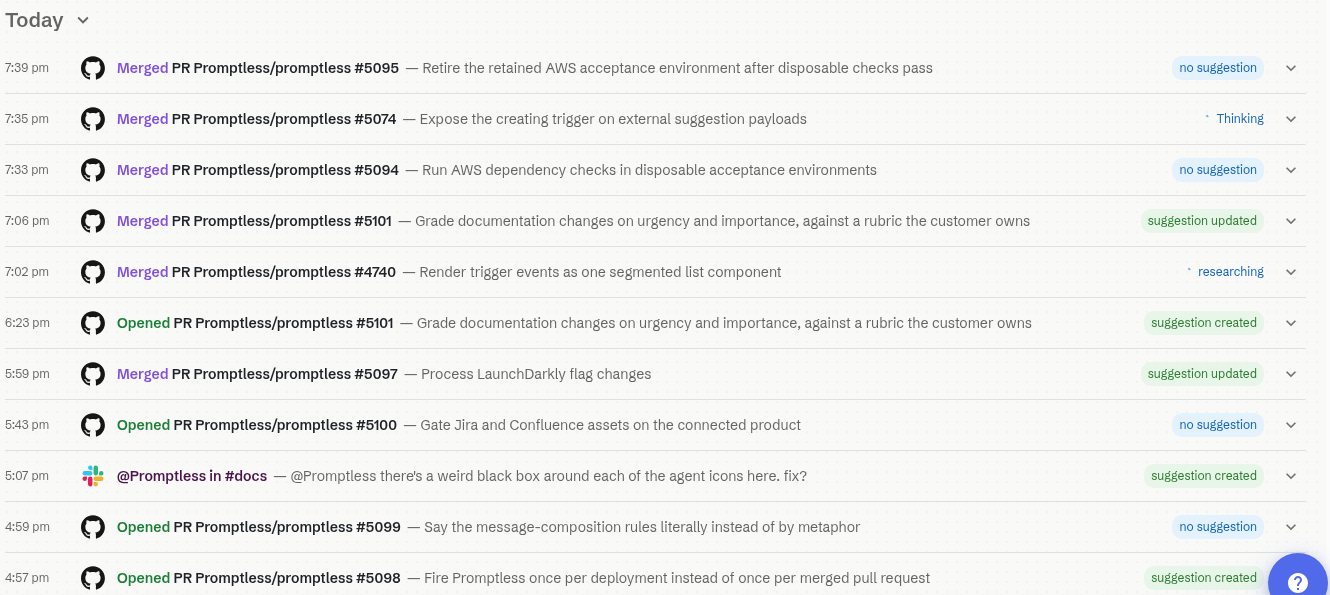
Section titled “Triggers page”The Triggers page shows every event that triggered Promptless over the last 30 days. Each trigger appears as a row. A status pill on the row reports the outcome at a glance: researching, suggestion created, suggestion updated, no suggestion, or suggestion closed. Expand a row to see the full timeline of what the trigger produced, read from top to bottom:
- Received: The event that fired, such as a GitHub PR or a Slack message, and when it landed.
- Suggestion created, Suggestion updated, or Suggestion closed: An entry for each documentation suggestion the trigger acted on. Suggestion closed appears when that trigger’s Promptless run closed the suggestion itself, whatever state its pull request is in. Each entry carries a chip showing where that suggestion’s pull request stands. The chip reads PR Open, Published (the PR merged), or Closed (the PR was closed without merging). Click a suggestion to open it. When a run finishes without producing a suggestion, the timeline notes No suggestion created instead.
- Trigger completed: When Promptless finished handling the trigger.
While a trigger is still being processed, its timeline shows a Processing indicator in place of Trigger completed, and its status pill reads researching.
Agent response
Section titled “Agent response”Any completed trigger whose run recorded a final response shows an Agent Response: block when you expand its row. The block previews that response, rendered as Markdown. This is especially useful when a trigger finished with No suggestion created, since the response can capture the agent’s reasoning for that outcome. The preview shows a truncated line by default. When the response is long enough to be truncated, a control toggles between Show more and Show less to reveal or collapse the full response.
Filter and search
Section titled “Filter and search”Use the search box to find triggers by PR info, Slack thread topic, task name, or other summary text, including events older than 30 days. The type and suggestion-activity filters help narrow results further.
The From and To date fields filter by a specific date range. Date filtering searches your full trigger history, not just the default 30-day window. Clear the dates to return to the default view.
Group triggers
Section titled “Group triggers”The Group by control organizes the trigger list:
- None: Flat list, newest first
- Event source: Groups triggers by platform (GitHub, Slack, etc.) with the most recently active source first
- Date: Groups triggers by day with headers like “Today”, “Yesterday”, or the calendar date (default)
Click any group header to collapse it. A count pill shows how many triggers are hidden. Click again to expand.
Research breakdown
Section titled “Research breakdown”The research breakdown appears inside a trigger’s expanded row, on the Triggers page or in a suggestion’s Triggers & Analysis tab. It shows the research Promptless did before drafting (or skipping) documentation. A summary line like “Promptless Research: 10 files, 2 knowledge base files, 3 searches” appears. Next to it, a toggle reads Show details when collapsed and Hide details when expanded. Select Show details to reveal the detailed list of what the agent read and searched.
The detailed list shows the agent’s work in roughly the order it happened, so you can follow the run as it unfolded. Along the way you see a few kinds of items:
- Files: source and documentation files the agent opened, shown as clean repository-relative paths.
- Knowledge base files: reads from your Knowledge Base, such as contribution guidelines or style rules. They appear inline at the point in the sequence where the agent consulted them. Each one is labeled “Read from knowledge base”. It links to that file in the Agent Knowledge Base editor in a new tab.
- Searches: content and filename searches the agent ran. Each search includes a chip showing where it ran. A branded chip marks your doc collection, and a sandbox chip marks a search of the agent’s own working directory.
- Webpages and Slack: external pages the agent fetched and Slack threads it read.
When Promptless delegates part of its research to a specialized subagent, that work appears as an indented branch labeled “Delegated research to <subagent-type>”. A tool-call count appears alongside it as ”· N tool calls”. The count stands in for that subagent’s work. Much of it is shell commands, which don’t each produce their own row. Older suggestions, created before delegation tracking existed, render flat, without a delegation branch.
If the agent used any of your own skills, a “Used N of your skills” callout appears next to the summary. This shows you when Promptless applied a workflow you authored. When Promptless delegates research, a “N research agents” callout sits alongside the summary.
Need help with the web interface? Contact us at help@gopromptless.ai.